Image
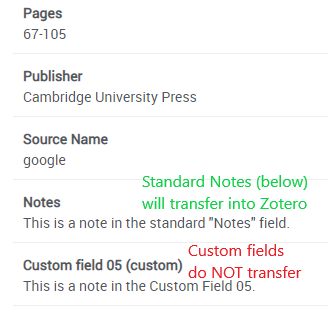
Before Migrating:
- This page describes migration from the new (blue) version of Refworks to Zotero. If you are using the old ("legacy") version of Refworks, please email us for migration recommendations.
- Custom Fields will not migrate. If you use Refworks to store notes about citations, make sure they are in the standard "Notes" field. If you have set up custom fields to store additional information, you will need to copy and paste them into Zotero after migration.
- PDF Attachments will not migrate. Unfortunately there is no way to transfer attachments (such as PDFs) from Refworks to Zotero.
- Migrate each folder separately. If you use Refworks folders or projects to organize your citations, and you want to preserve this structure in Zotero, we recommend only migrating one folder at a time, rather than migrating all your citations at once.
Exporting Citations from Refworks
Image
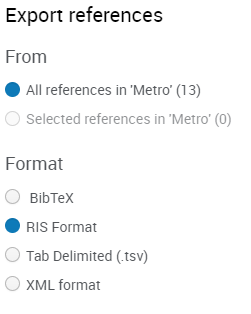
- In Refworks, select the references you want to migrate:
- Select a folder by clicking on it, or
- Select individual references by clicking their checkboxes, or
- Select all references by going to "All References" and leaving all boxes unchecked.
- Under the Share menu, choose Export References.
- In the pop-up box, set Format as RIS Format. (BibTeX also works, but we find we have the most complete transfers with RIS.)
- Click Export. Refworks may think for a bit, but eventually will download a file of citations (often named export.ris) to your Downloads folder or wherever your browser stores downloaded files.
Importing Citations into Zotero
Now that you've exported your citations out of Refworks, it's time to import them into Zotero:
Image
- Open Zotero.
- Click File > Import.
- Zotero will ask what you want to import from. Usually A file is the only option, but if you have other options, choose the file option. If there are multiple file options, choose RIS.
- Navigate to the file created by Refworks during the export process (usually export.ris) and select it.
- Zotero import options:
- Place imported collections and items into new collection -- we recommend leaving this checked, especially if you are migrating one folder at a time.
- Copy files to the Zotero storage folder.
- Click Next and wait for the Zotero import process to finish. Then click Finish.
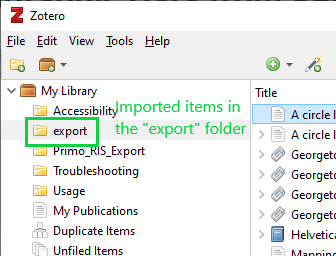
If you've selected the new collection option, Zotero will put all the imported references into a new folder named for the filename of the RIS file. (If your file was named export.ris, look for a new folder in your library called Export.) We suggest immediately renaming this collection/folder if you are exporting one folder at a time.
If you have additional folders to migrate, delete the export.ris file, then go back to Refworks and export the next folder of citations. Select the new export.ris file and import into Zotero.
Questions about migration or citation tools? Email eresources@georgetown.edu and we'd be happy to help.